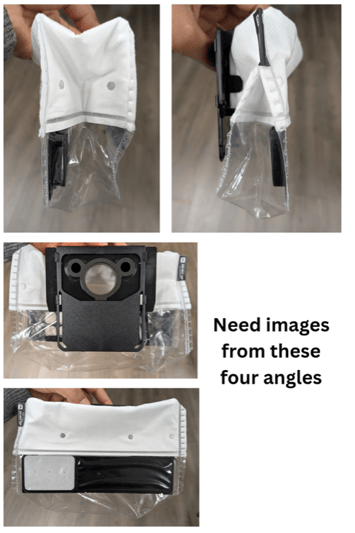
How often should I be replacing bags?
With daily vacuum and mop use, replacing the HEPA bag roughly once a week is normal, though this varies depending on your home and debris levels. Using Heavy Duty / Deep Clean mode circulates more air and packs debris more efficiently and can help bags last longer. Removing the bag and giving it a gentle shake can also temporarily reset airflow.
If the error seems to be coming up too soon or too often, follow the steps below and reach out if it persists.
1. Check the Bag for Damage
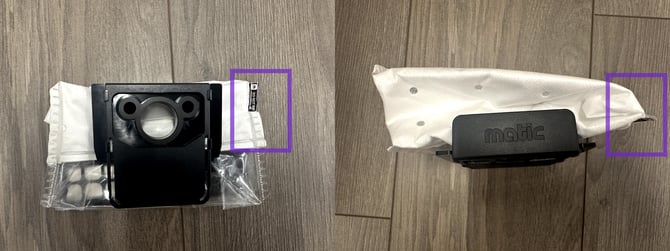
Remove the bag and inspect it carefully, particularly on the side with the Matic sticker. If the sticker is torn or the bag is damaged, replace it — a compromised bag blocks airflow and will keep triggering the error even when it isn't full.
The bag is sealed on one side by design. This prevents the fabric from being drawn into the vacuum inlet, which would restrict airflow. This is normal and not damage.
2. Declog the duct area
Remove the bag and clear debris from the cavity where the HEPA bag sits if needed.
With the bag removed, use the declogging tool from your accessories box to clear any debris from the duct and the cavity where the bag sits.
If you don't have a declogging tool, let us know when you submit a ticket and we'll send one.
Need more help?
If the error continues after these steps, submit a ticket in the Matic app (Settings > Support > Contact Us) and include:
- Photos of the HEPA bag from all angles
- Whether you found any damage to the bag or sticker
- Whether you were able to declog the duct
- How many bags you've gone through and over roughly how long